app
Working with the App
Can I also knit with Wooltasia?
Of course. As long as your gauge swatch fits, you can use Wooltasia not only for crochet, but just as well for knitting. And yes: perler beads, embroidery, and even drawing on graph paper are possible too. Some people in the community use the app exactly for that.
My gauge swatches
You create your gauge swatches in the app overview and manage them there as well. To do this, tap the apps icon in the top right corner of the project overview and open the Gauge Swatch Booklet.
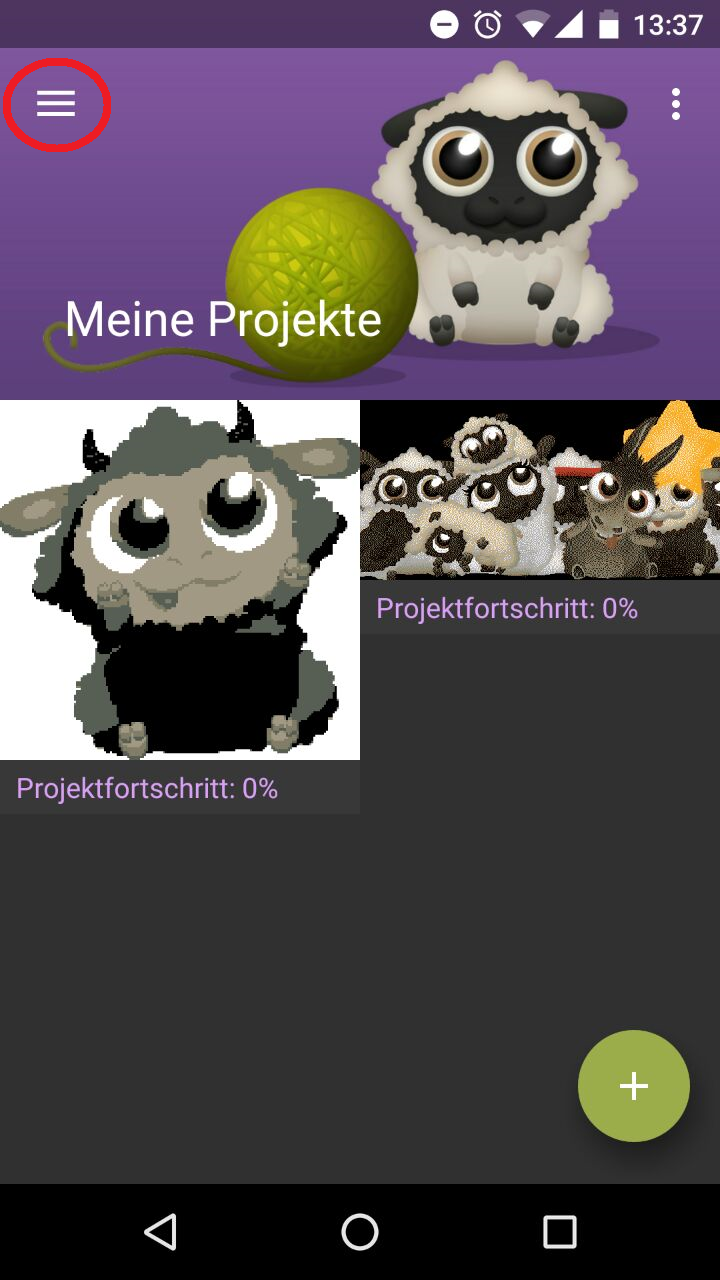
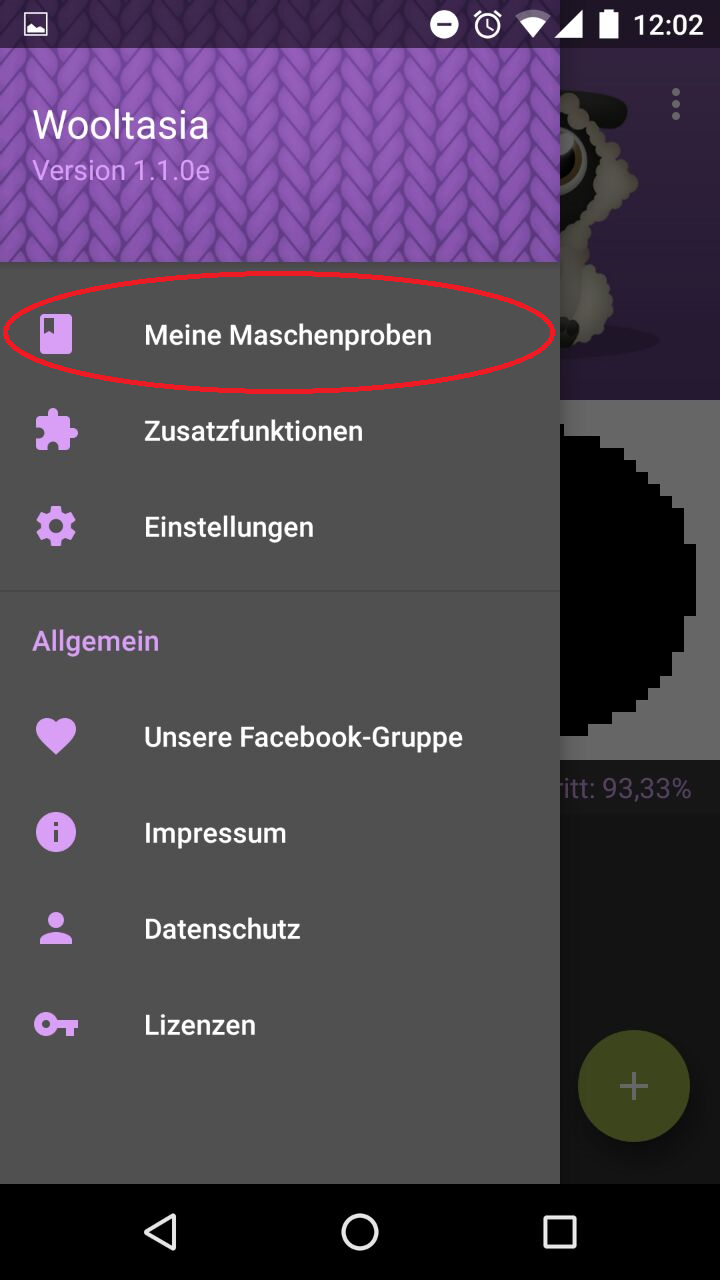
For your first project, you need your own gauge swatch, otherwise you cannot continue.
Important
If you are still unsure about the term, first take a look at Gauge swatch.
Gauge swatch booklet
You will no longer find the gauge swatch booklet in the old side menu, but via the icon in the top right corner of the project overview. There, the app overview opens and you can select the Gauge Swatch Booklet directly.
Settings
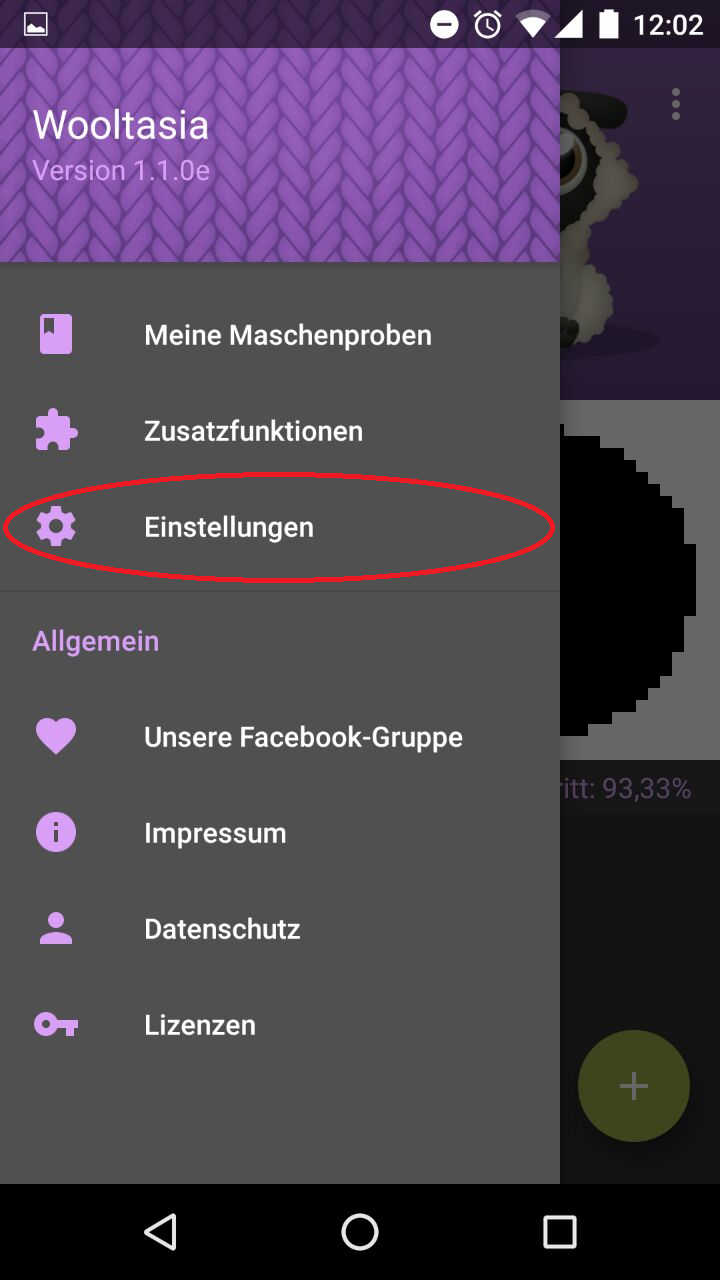
You can change all settings at any time, even if your project is already running. You will find them in the side menu at the top left under Settings.
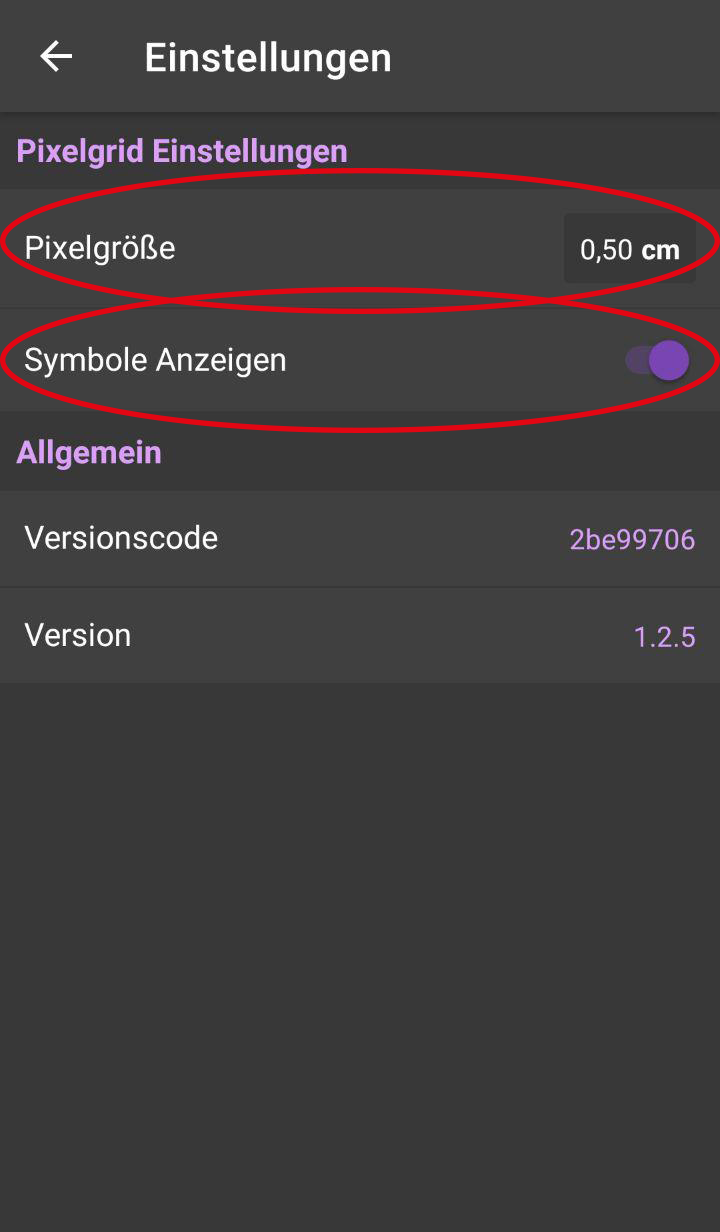
Units and Size
- Unit of measurement
- Calibration of pixel size
Pixel Grid Settings
- Pixel size in the pixel grid
- Split sections into blocks of 10
- Show symbols
- Show symbols for checked pixels
- Automatic zoom
- Color of checked pixels
- Selection color
- Grid color
- Pixel style
- Control layout
- Show timer in the pixel grid
Pixelator Settings
- Show sliders in the Pixelator
General
- Theme
- Enable seasonal effects
- Enable seasonal design
- Language
I have created a project. How do I get started?
Start with the color that appears most often in the motif, usually the background. Then crochet your foundation chain to the project width, for example 210 stitches plus 1 turning chain (for single crochet). A good trick: work 2 to 4 rows as a base first and then start with the chart.
My chart looks pixelated. Why?
The app recalculates your image based on your gauge swatch. Depending on the format and yarn, the motif may look pixelated. Your gauge swatch tells the app how many pixels fit into an area of 10 cm x 10 cm.
In most cases, these adjustments will improve the result:
- Use thinner yarn so more pixels fit into the same area.
- Choose a smaller image section, then fewer details are needed.
- Or keep the section and choose a larger format for more detail depth.
How do I read the chart?
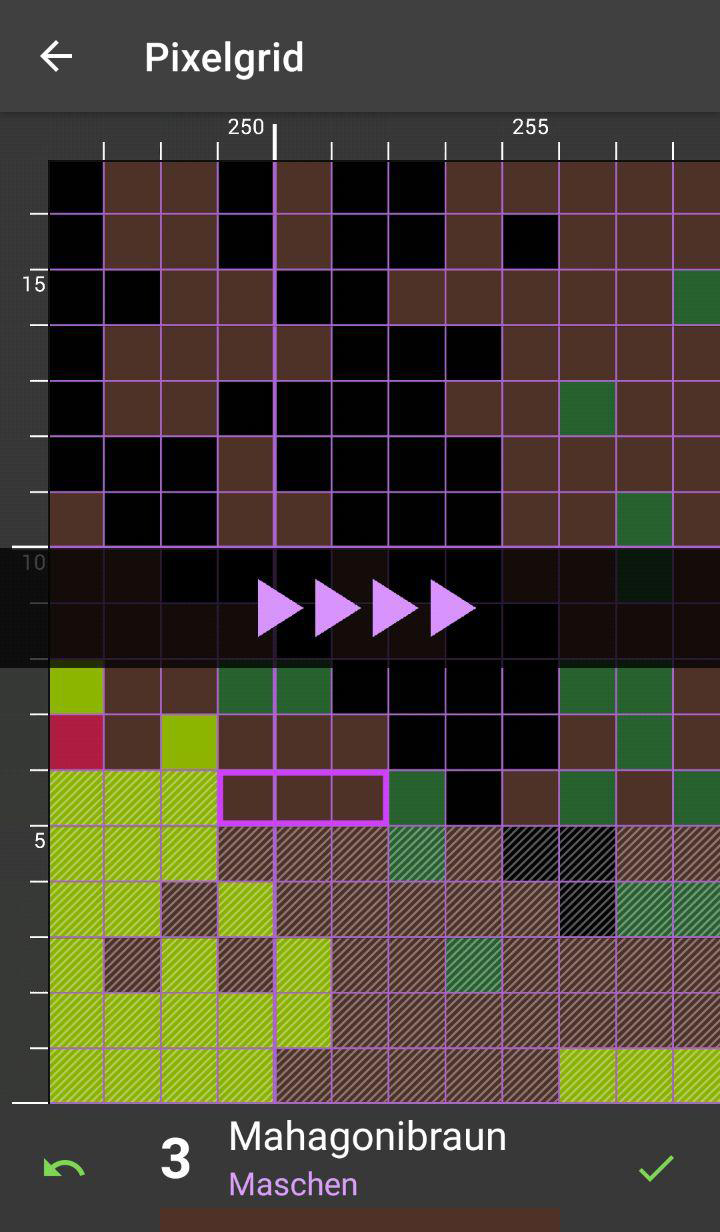
By default, you read the chart in a zigzag pattern: row 1 from right to left, row 2 from left to right, then back again. At the end of the row, make a turning chain and turn your work.
Are there other ways to work through the chart, for example for Tunisian crochet or perler beads?
Yes. You can enable the working direction for left-handed users and also use the mode for Tunisian crochet. The same principle also works for perler bead and embroidery projects.
Left-handed users
For left-handed users, the principle is the same, but you start on the left side.
Tunisian crochet
In Tunisian mode, you always start from the same side:
- Right-handed: from right to left
- Left-handed: from left to right
How do I change colors?
Take a look at the "Getting Started with Crochet Picture Motifs" guide as well.
- For quick color changes (1 to 2 stitches), you can often carry the yarn.
- For larger color areas, it is better not to carry the yarn, otherwise it will show through.
- For neat work: wind the yarn onto clips, prepare the color change in the last loop of the old stitch, and then finish with the new color.
- Always place the yarn in front of the work when changing colors, as shown in the video:
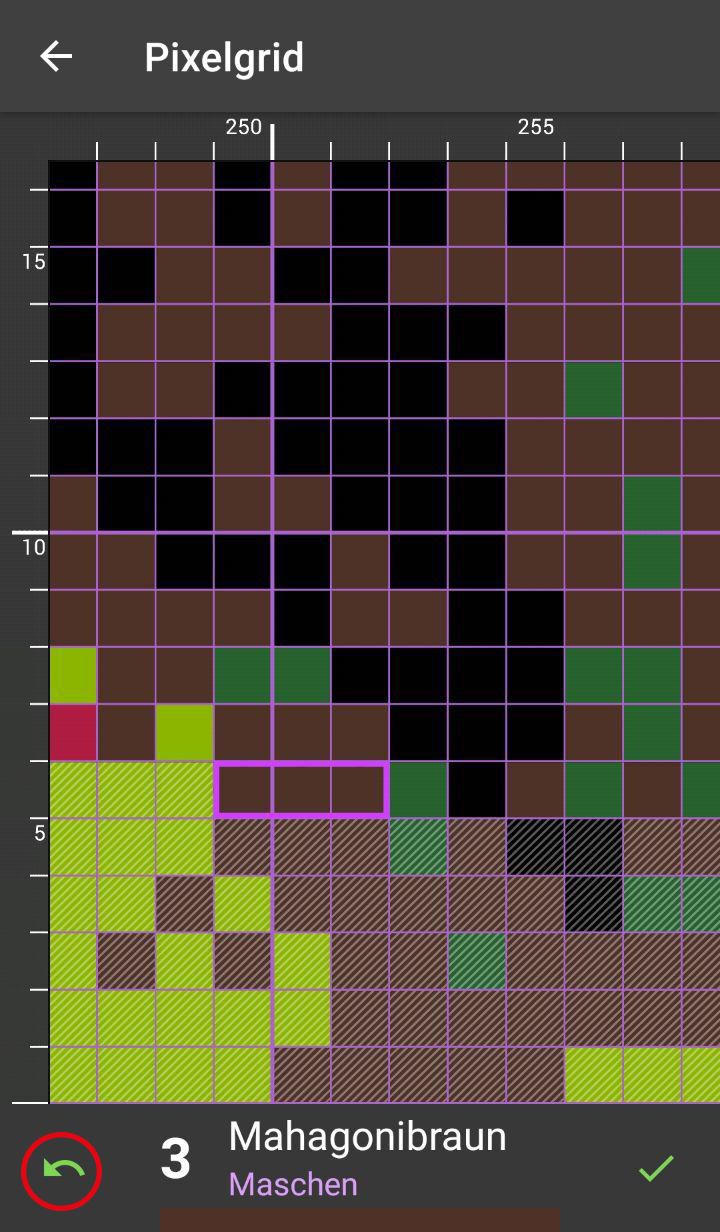
Undo checked squares
Next to the green check mark, you will find an arrow. You can use it to reset image points you have already checked off.
Show crochet direction
The current crochet direction is shown when you ...
- ... finish a row and move to the next one.
- ... choose a craft technique and enter the pixel grid.
- ... switch from the project overview to the pixel grid.
- ... or press the direction button in the toolbar.